

6 Desktop Login Wireframes That Don't Look AI-Generated
Six free desktop login wireframes from the NeedMCP catalog, with previews, the one design decision each gets right, and how to tell which one your product should start from.

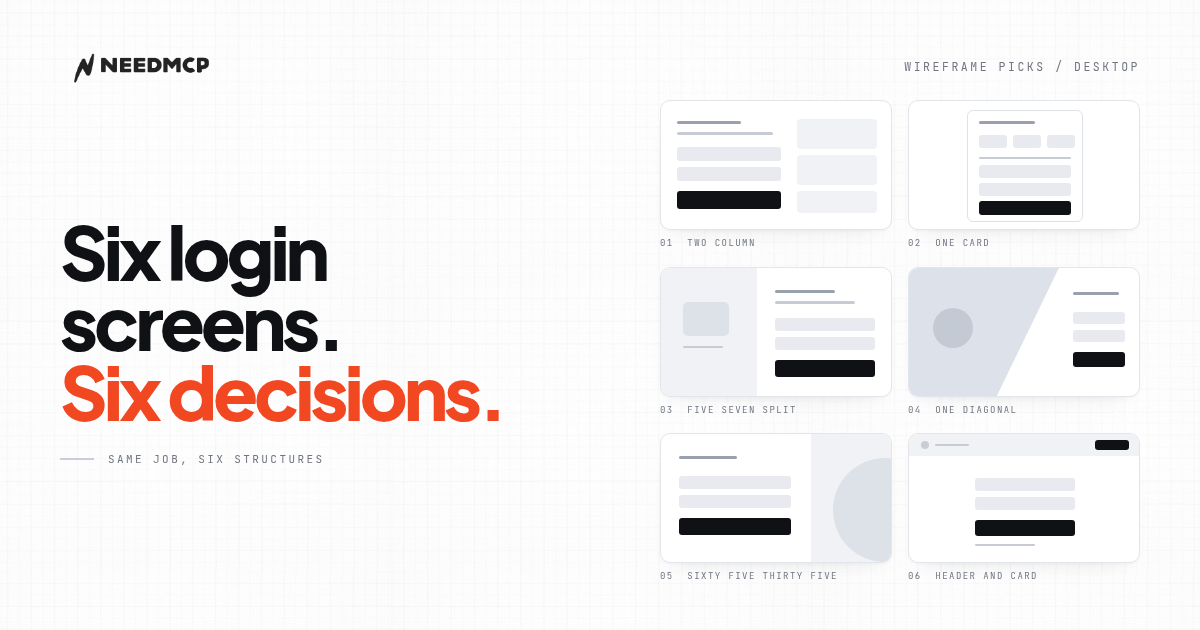
Why every AI login page looks the same
Ask an assistant for a login page and you get the same shape every time: a card floating in the middle of an empty page, a heading, two fields, and three social buttons nobody asked for.
None of that is a taste problem. It is a structural one. Nobody decided how many entry paths the page offers, in what order, or what the user needs to see before they are willing to type a password. When those decisions are left open, the model fills the gap with the most common arrangement on the internet.
The six layouts below are free in the NeedMCP catalog. They are not variations of one template. Each one answers a different structural question, and each one is a blueprint you can pair with any style afterwards. Every section links to its wireframe page, where the full layout and the line drawing variant live. If you have not connected your assistant yet, start with How to use NeedMCP wireframes in your AI Agent.
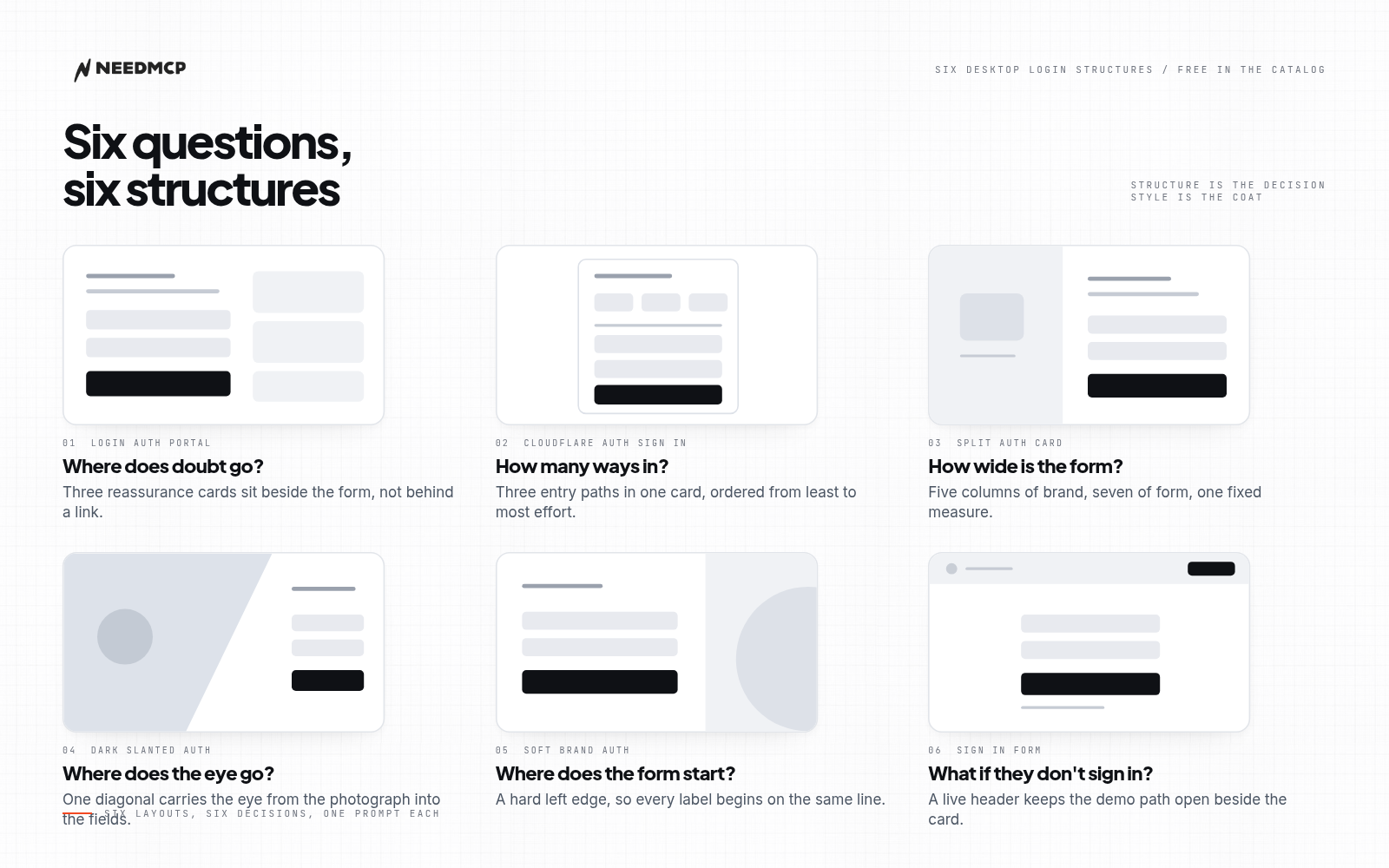
Six layouts, one job. What changes between them is the structure, not the styling you put on top of it.
1. Login Auth Portal
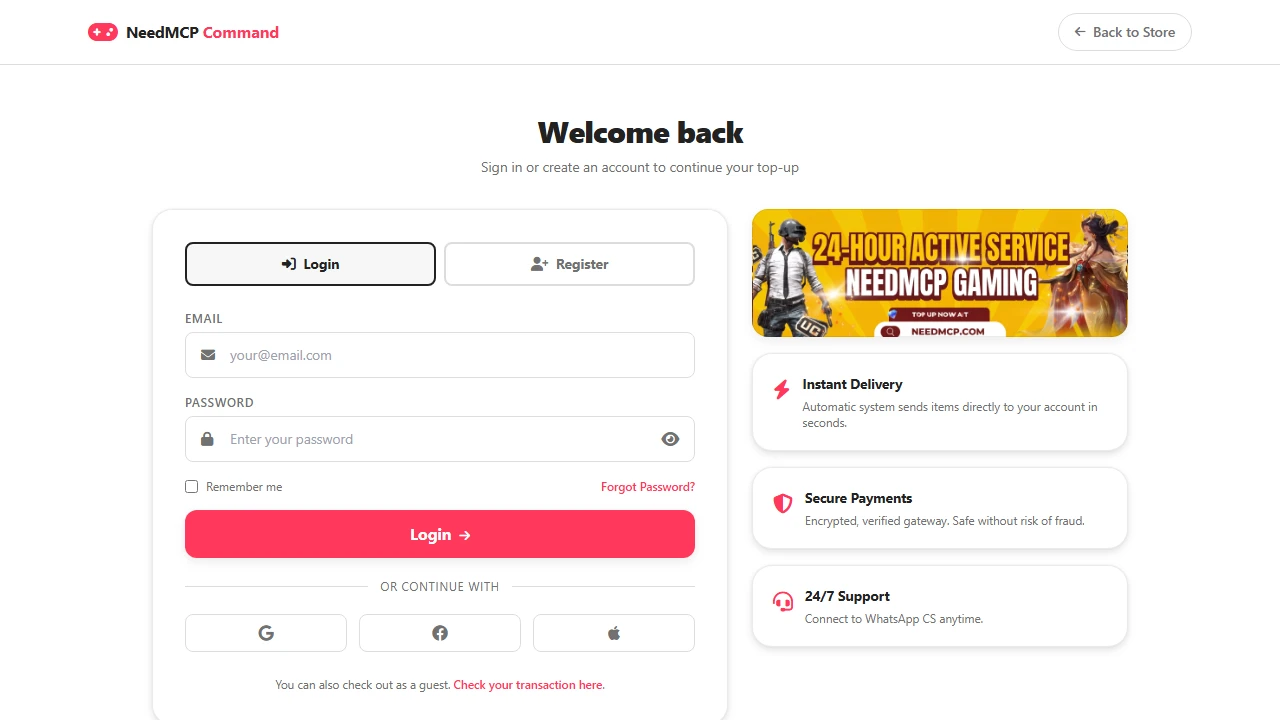
Login Auth Portal: an isolated auth screen with no sidebar competing for attention.
The app shell is gone entirely. A slim brand bar sits at the top, followed by a Login and Register segmented control, then a two column grid. The form card owns the left column. The right column stacks three reassurance cards: Instant Delivery, Secure Payments, 24/7 Support.
Why it works: the user is one step away from paying, so doubt is the real obstacle, not the form itself. The right column answers three objections without sending anyone to another page, and because it is a stack of short blocks it gets scanned rather than read. The form column stays narrow, which keeps the eye moving straight down instead of across.
Layout move worth stealing: merge login and register into one screen with tabs. A first time visitor never leaves the page, and a returning visitor is already on the right tab.
Use it when you sell something and the login sits near checkout: commerce, gaming, memberships.
Blueprint: Login Auth Portal
2. Cloudflare Auth Sign In
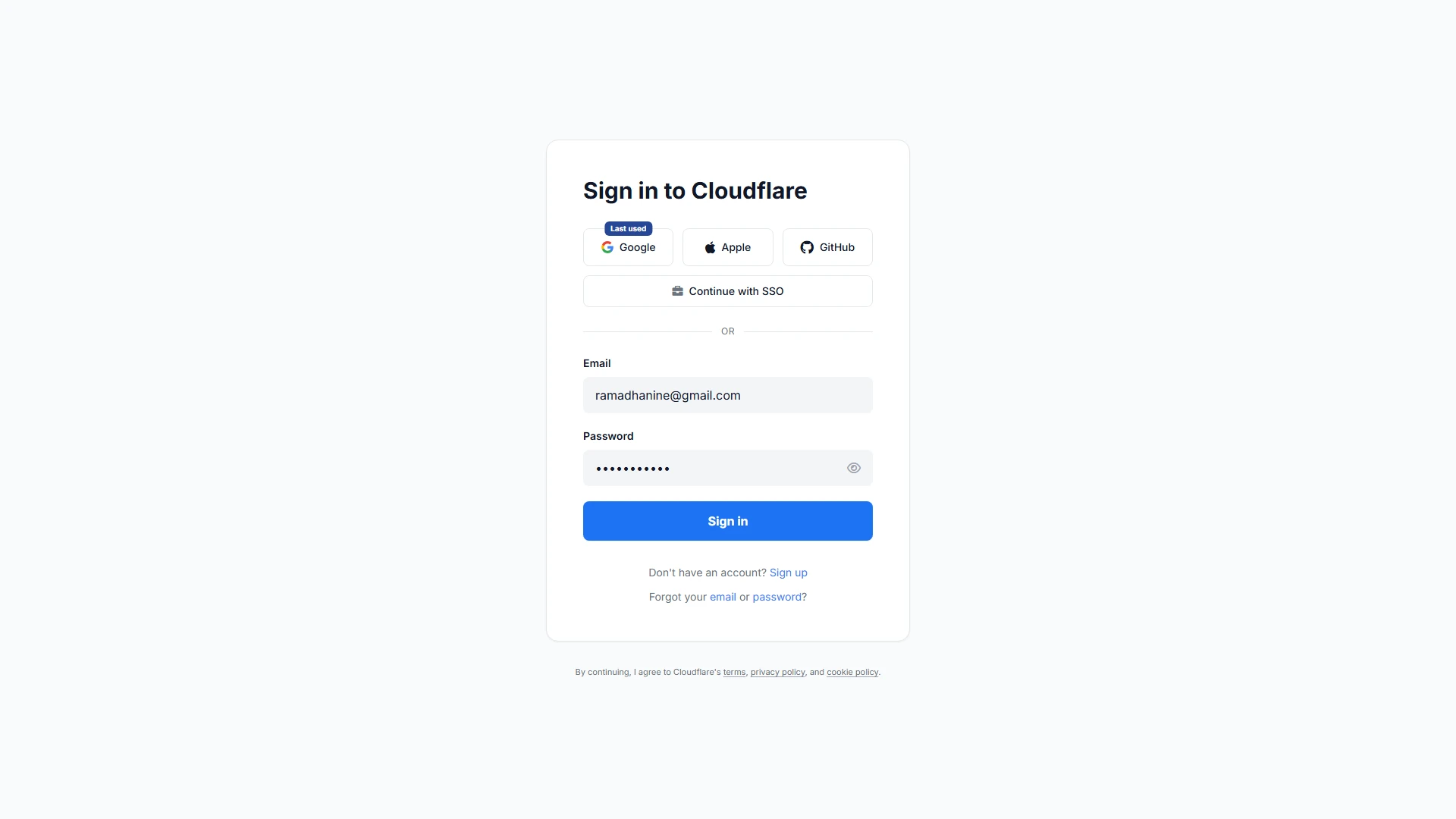
Cloudflare Auth Sign In: one card that holds three entry paths without a second page.
A single card, roughly 480 pixels wide, centered on the page. Inside it, three social buttons share one row, a small Last used badge sits above the first of them, a full width SSO button follows with a briefcase icon, then a hairline divider, then email and password stacked, a full width submit, and a legal footer in small type.
Why it works: the order runs from least effort to most. Social first, company identity second, typing a password last. That matches how people actually choose at a gate. Every button is full width, so the page has one vertical rhythm and a large hit target on each step, which matters on a trackpad and matters more on a laptop with a small window.
Layout move worth stealing: the Last used badge. It is the only element that refers to this specific person before they have signed in, and it removes a decision instead of adding one.
Use it when your customers arrive with a company identity and expect single sign on to be a first class path, not a fallback.
Blueprint: Cloudflare Auth Sign In
3. Split Auth Card
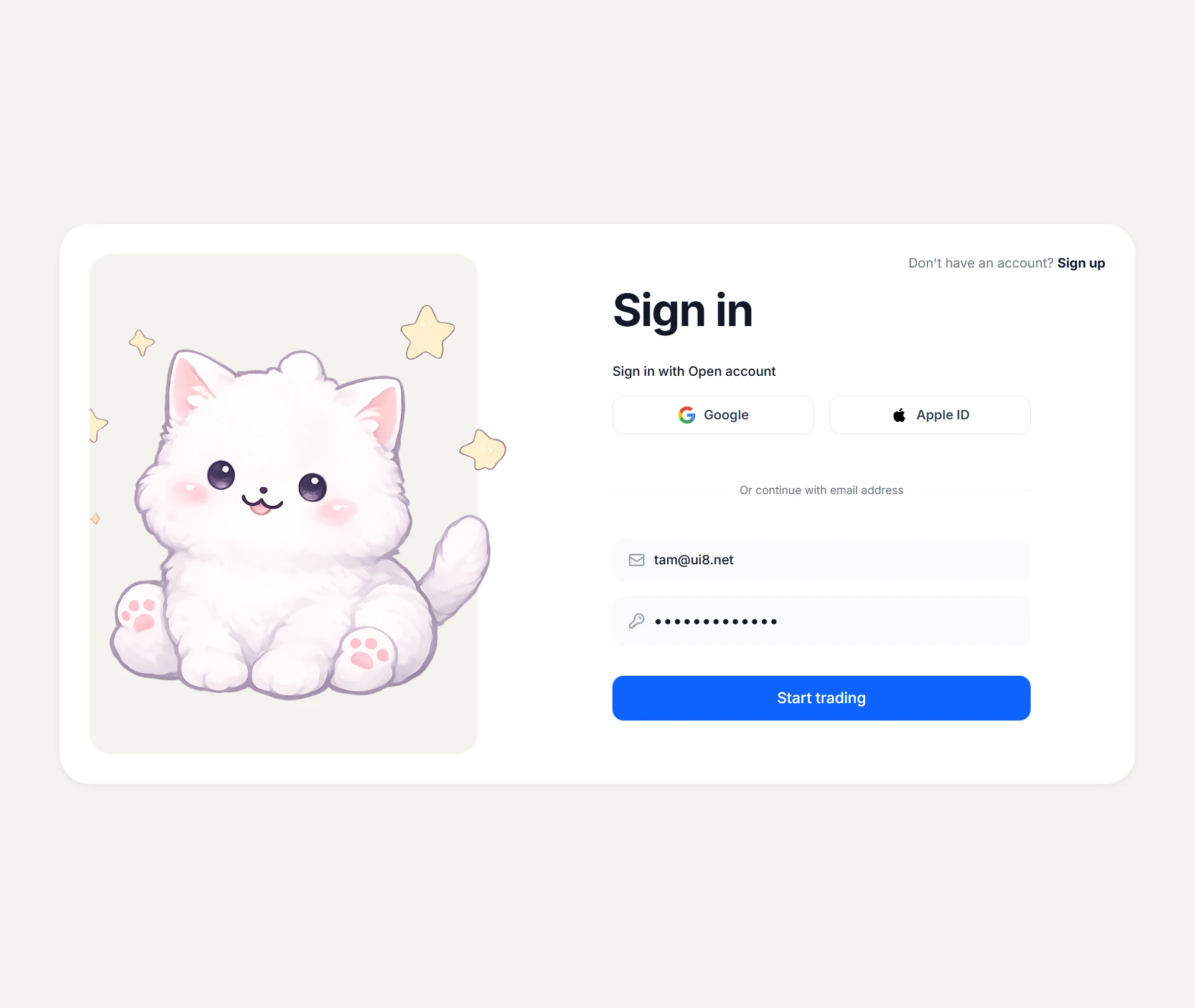
Split Auth Card: a 5/12 illustration panel against a 7/12 form panel, with a sign up link floating above the card.
A wide card, 72rem across and about 80 percent of the viewport tall. The left panel takes 5 of 12 columns and holds an illustration. The right panel takes 7 of 12 and holds a Sign in heading, a short subtitle, two social buttons side by side, two icon led fields, and a full width submit. A Don't have an account link sits outside the card, at the top right.
Why it works: the split gives the form a fixed narrow measure inside a wide card. Fields stay short enough to scan in one pass while the card still feels substantial. The illustration panel absorbs the brand weight, so the form panel can stay quiet and functional.
Layout move worth stealing: the illustration is positioned so it bleeds past the edge of its own panel. One element breaking the rectangle is what stops the card from reading as a generic container, and it costs nothing in usability because nothing interactive lives there.
Use it when the product needs to look steady and expensive: trading, fintech, enterprise tooling.
Blueprint: Split Auth Card
4. Dark Slanted Auth
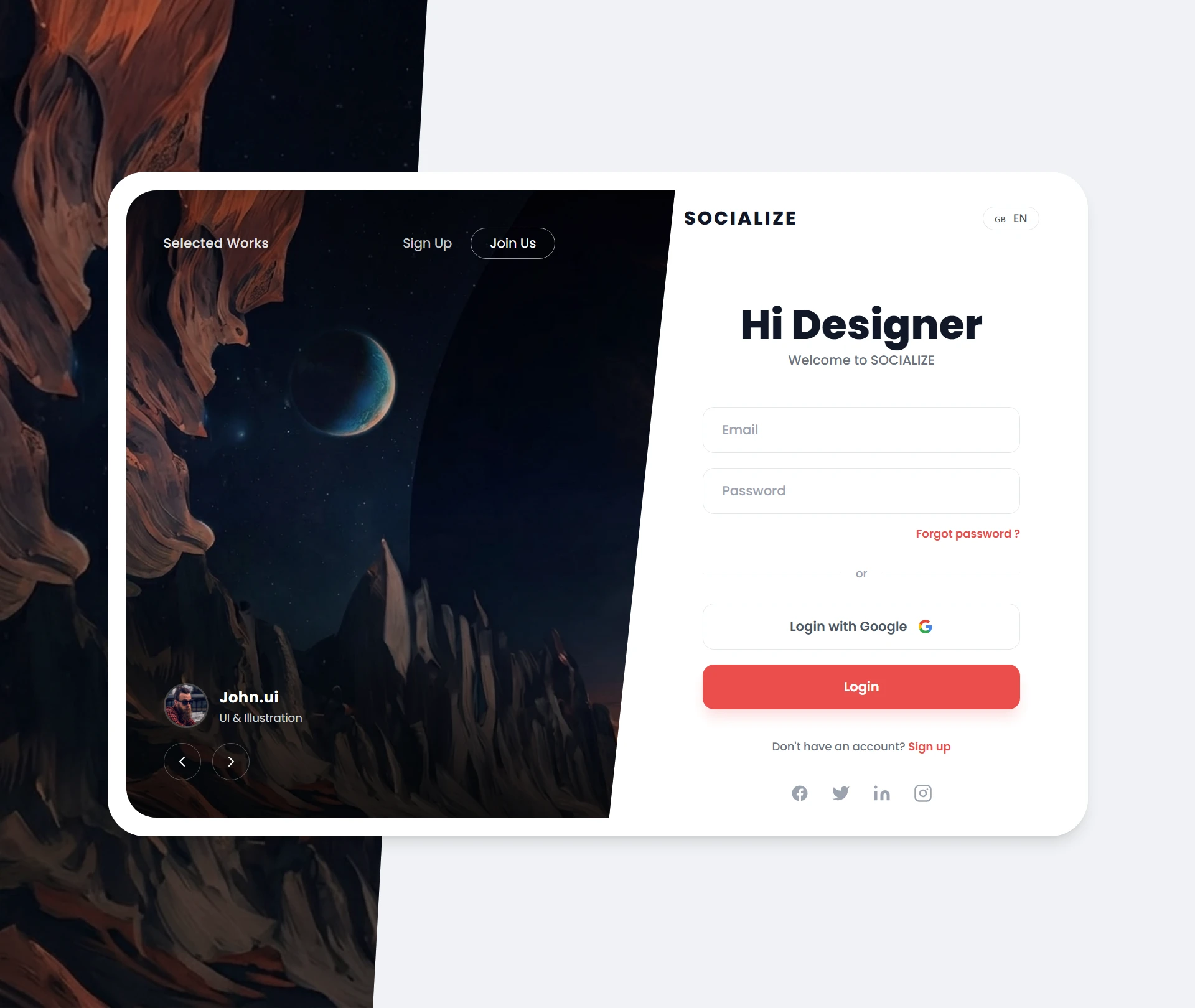
Dark Slanted Auth: photography clipped on a diagonal, with a compact 340 pixel form column.
A large card, about 1050 by 700, sitting on a plain page. The left 56 percent holds a photograph clipped by a slanted polygon, and on top of it a brand row, a profile line, and left and right gallery arrows. The right side is a narrow column of roughly 340 pixels with a brand mark, a heading, a subtitle, email and password fields, one social button, a row of four small social icons, and a language selector.
Why it works: the diagonal edge does the work a static rectangle cannot. It creates a single line of direction that carries the eye from the photograph down into the form, so the page has a path instead of a wall. The narrow form column keeps the reading measure short, and the profile line plus the gallery arrows make the screen feel like a live product surface rather than a gate you have to pass.
Layout move worth stealing: exactly one diagonal on the page, used once. Repeat it and the layout turns into decoration.
Use it when the login is part of the brand statement: portfolios, agencies, creative tools.
Blueprint: Dark Slanted Auth
5. Soft Brand Auth
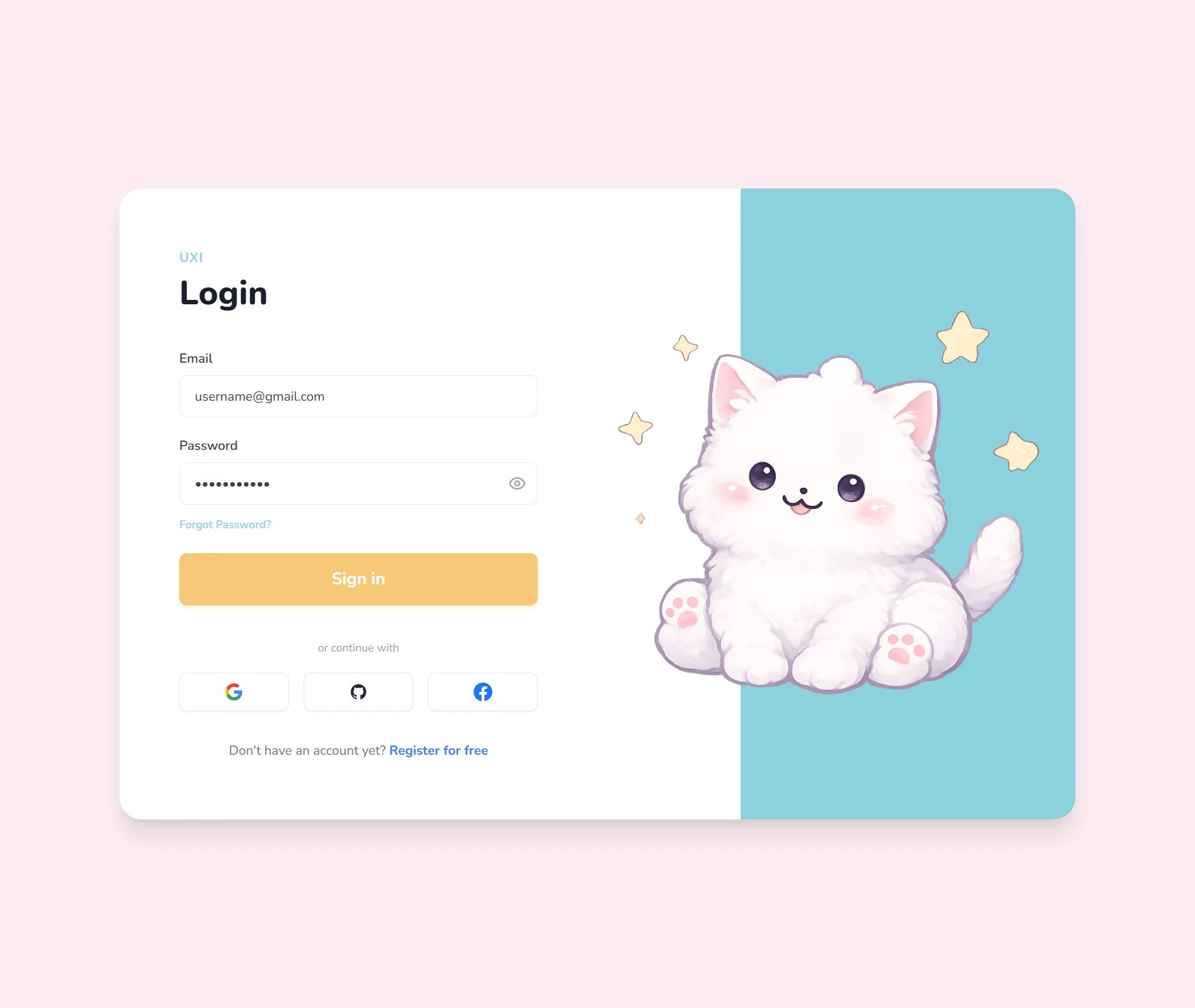
Soft Brand Auth: an asymmetric 65/35 split with the form anchored to the left edge.
A wide card split 65/35. The left panel holds the brand mark, a Login heading, and a form left aligned at a 24rem measure: email, password with a show and hide control, a forgot password link, a full width submit, then three social buttons stacked, and a register link. The right panel holds an illustration that overflows past the card edge.
Why it works: a left aligned form creates a hard reading edge, which is easier to scan than a centered form of the same width, because every label starts at the same vertical line. Stacking the social buttons instead of putting them in a row keeps them secondary: they are alternatives, and the layout says so by giving them less width and less height than the primary action.
Layout move worth stealing: the 65/35 split. An uneven division reads as a decision, while a 50/50 split reads as a default.
Use it when a rigid enterprise card would feel cold: consumer apps, education, wellness, anything with a friendly voice.
Blueprint: Soft Brand Auth
6. Sign In Form
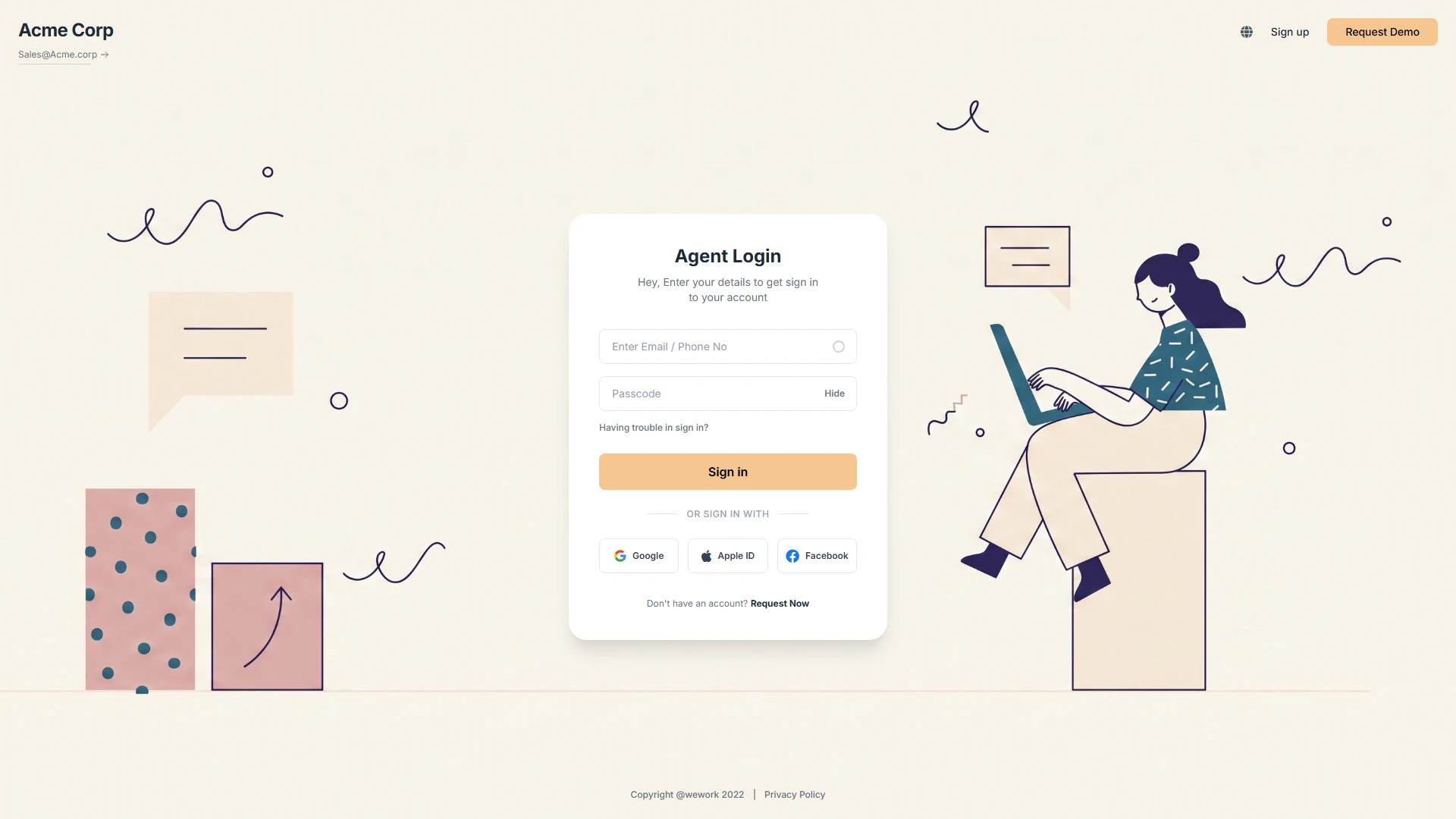
Sign In Form: a 420 pixel card inside a live corporate header, not on a blank page.
A corporate header with a logo, a contact address, a globe icon, a Sign up link and a Request Demo button. Below it, a card capped at 420 pixels holds a heading with a subtitle, an email or phone field with a trailing icon, a passcode field with a Hide toggle, a trouble signing in link, a full width submit, a divider, three social buttons in a row, and a register row at the bottom.
Why it works: the header keeps the marketing path alive. Someone who is not ready to sign in can still request a demo or read the navigation, so the page stops being a dead end and starts being one door among several. Inside the card, the 420 pixel measure is narrow enough to scan in a single pass, and the trailing icon plus the Hide toggle reduce the most common recovery moments: wrong email format and a mistyped password.
Layout move worth stealing: social buttons placed after the submit rather than before it. Credentials stay the primary path, and the alternatives sit where a hesitant user arrives, not where a confident one starts.
Use it when sales run through demos: B2B SaaS, agencies, anything where login is one door among several.
Blueprint: Sign In Form
Which one to start from
| If your product is… | Start with | Because the layout |
|---|---|---|
| Commerce or gaming, login near checkout | Login Auth Portal | Answers objections beside the form, tabs keep new users on the page |
| Enterprise with company identities | Cloudflare Auth Sign In | Three entry paths in one card, ordered by effort |
| Fintech, trading, corporate | Split Auth Card | Narrow form measure inside a substantial card |
| Portfolio, agency, creative | Dark Slanted Auth | A diagonal that leads the eye into the form |
| Consumer, education, wellness | Soft Brand Auth | Hard left reading edge, social buttons kept secondary |
| Demo led B2B sales | Sign In Form | Header keeps the marketing path open |
How to pull one into your project
Name the layout by slug and describe the page in the same prompt: wireframe:login-auth-portal build the login screen. A style prefix is optional. If your project already has one, put it first so the layout inherits your type, spacing and surfaces: style:cafe-noir-minimal wireframe:login-auth-portal build the login screen. For the canonical HTML version of a layout, use wireframe-accurate:<slug> on Pro. Without it, your assistant gets the structural blueprint and adapts it to your stack, which is usually what you want anyway.
All six are free. Each one also ships a line drawing variant if you only want the skeleton, and styled previews so you can see how the same structure behaves under a different design language. That is the point of a wireframe: the structure is the decision, the style is the coat you put on it.
The setup, the trigger, and the four checks that the page really came from the blueprint are in How to use NeedMCP wireframes in your AI Agent.
One more thing
These are desktop layouts. Mobile auth is a different structural problem. It is not card composition but how many entry paths fit on one screen without turning it into a menu. That collection lives in the mobile wireframe catalog, and it deserves its own breakdown.
Keep reading
More from Guides
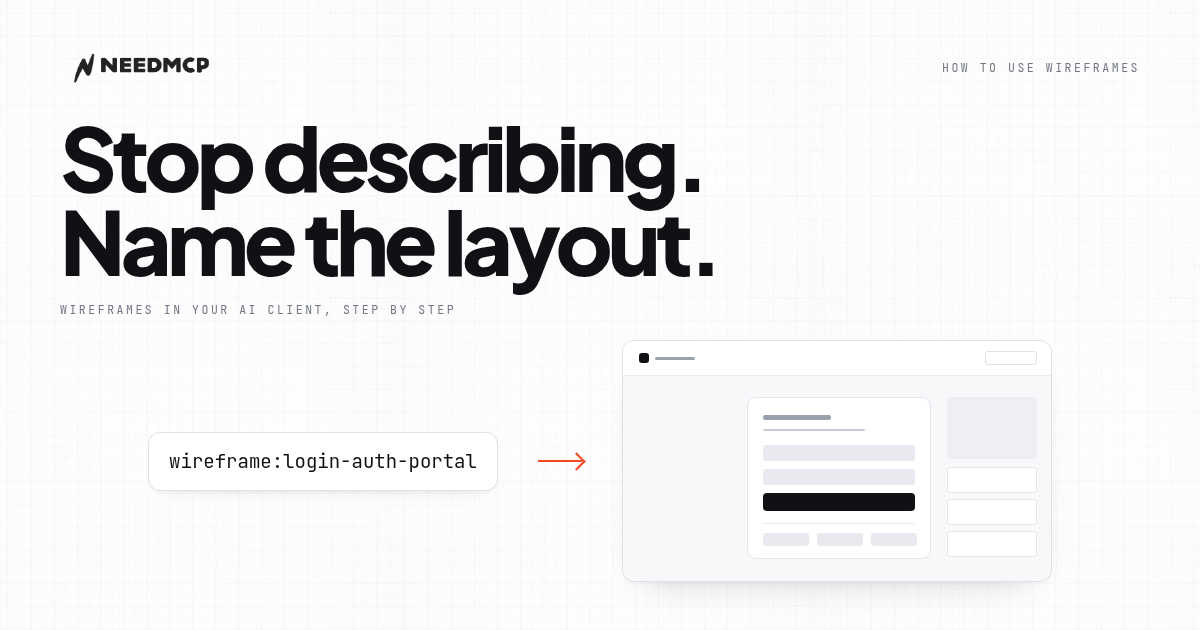
How to use NeedMCP wireframes in your AI Agent
Wireframes are the part most people connect and never trigger. Here is the whole path: the one-time setup, the slug that names a layout, and how to tell the page came from the blueprint.
AGENTS.md Builder: give your AI a rulebook before it writes code
Your AI forgets your decisions between sessions, so you re-explain them every time. AGENTS.md Builder interviews you for five minutes and writes the rulebook your assistants actually read.
Design context for AI coding: how to stop your assistant reinventing your UI every session
AI coding assistants drift between sessions because they lack shared design context. Here is why design drift happens, what six existing fixes leave unsolved, and how an MCP design context service fits in.
Ship UI that does not look AI-generated
Pull design tokens, wireframes, and modular sections straight into your project over MCP. No screenshot-to-guessing, no generic Tailwind defaults.