

How to use NeedMCP wireframes in your AI Agent
Wireframes are the part most people connect and never trigger. Here is the whole path: the one-time setup, the slug that names a layout, and how to tell the page came from the blueprint.

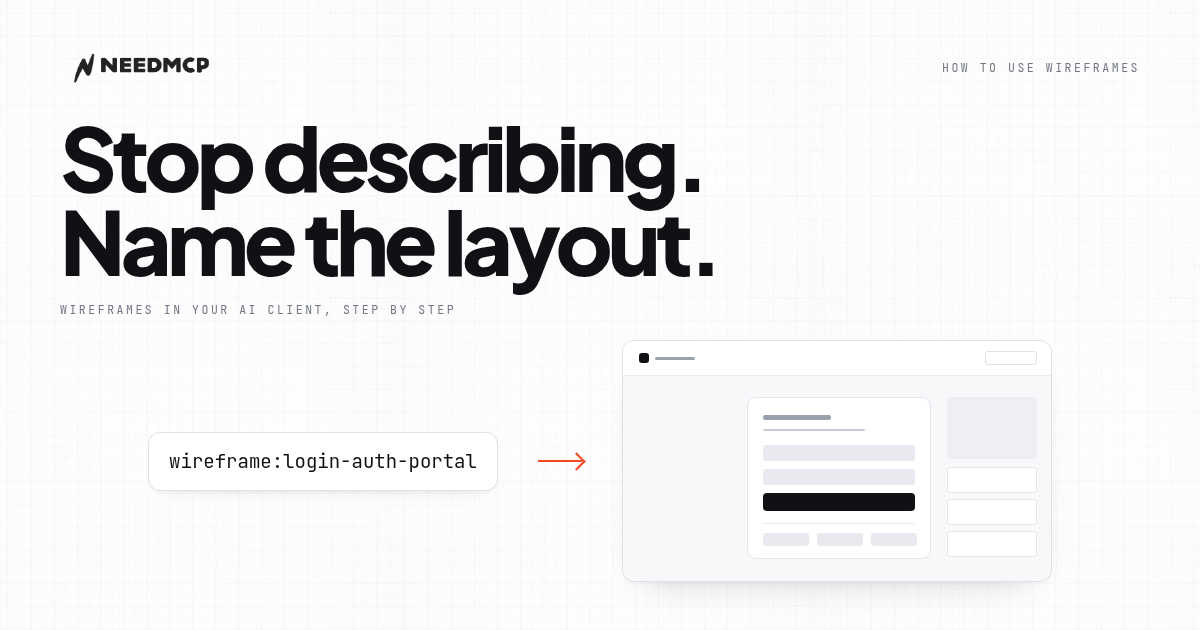
What a wireframe request looks like
One line. That is the whole interaction.
wireframe:login-auth-portal build a login screen for my app
- The layout comes from the catalog, by slug.
- The page is what you ask for in plain words.
- The stack is whatever your repo already uses.
Three steps below: connect once, name a layout, check the result.
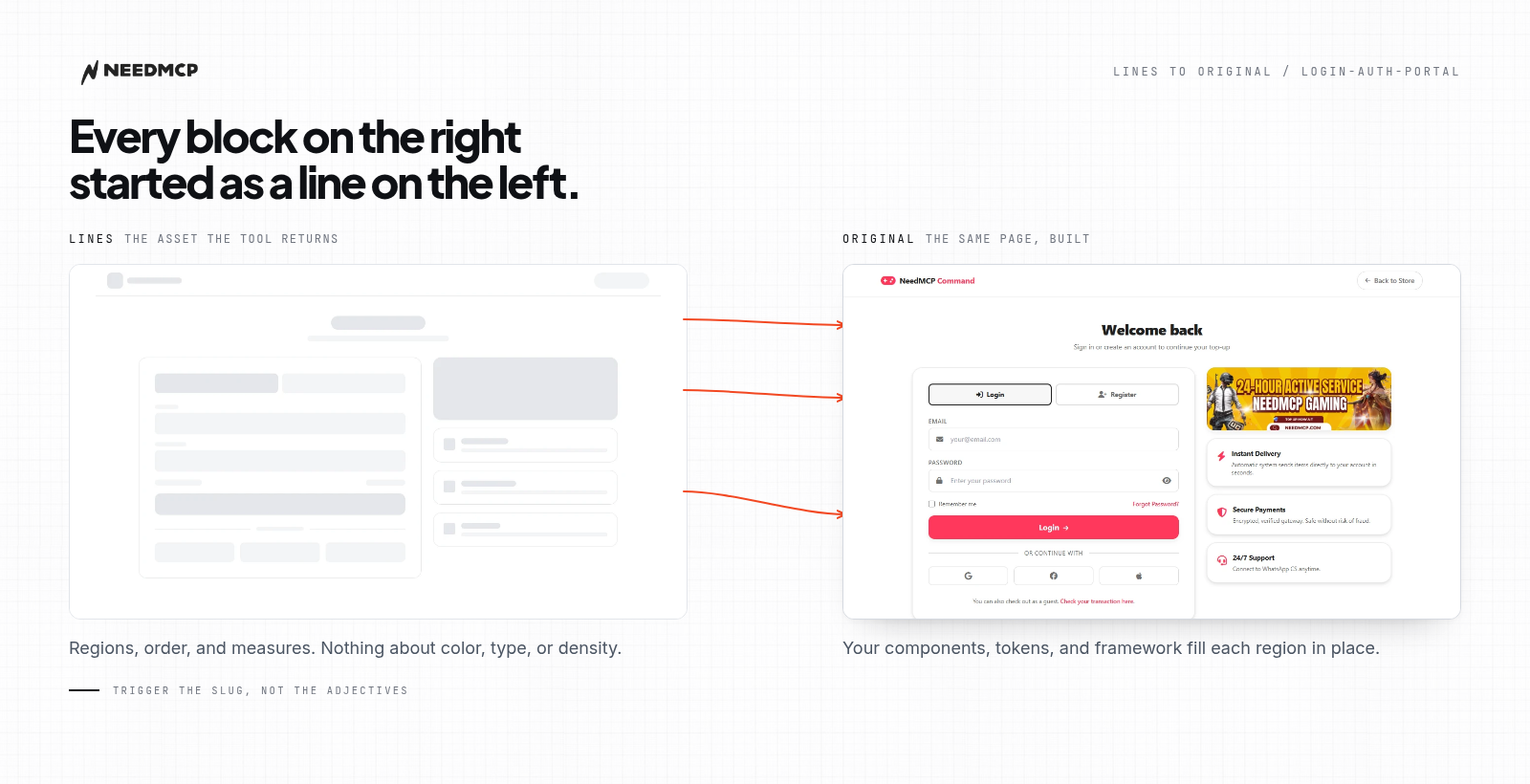
Left: the lines asset for login-auth-portal. Right: the same page built from it. Same regions, same order.
Step 1: connect the client, once
- Need: Node.js 22 or newer, and an API key from the dashboard. Keys start with
sk-need-. - Run:
npx needmcp setup. It asks for your client, the scope, and the key. - Result: the right config file for that client, plus the key in
~/.needmcp/config.json.
The CLI configures 19 of the 34 documented clients automatically, including Cursor, Claude Code, VS Code, Windsurf, Zed, Codex, Gemini CLI, and OpenCode. The rest are manual, one block pasted by hand.
| Server URL | Auth header | Transport |
|---|---|---|
https://needmcp.com/mcp |
X-API-Key |
streamable HTTP |
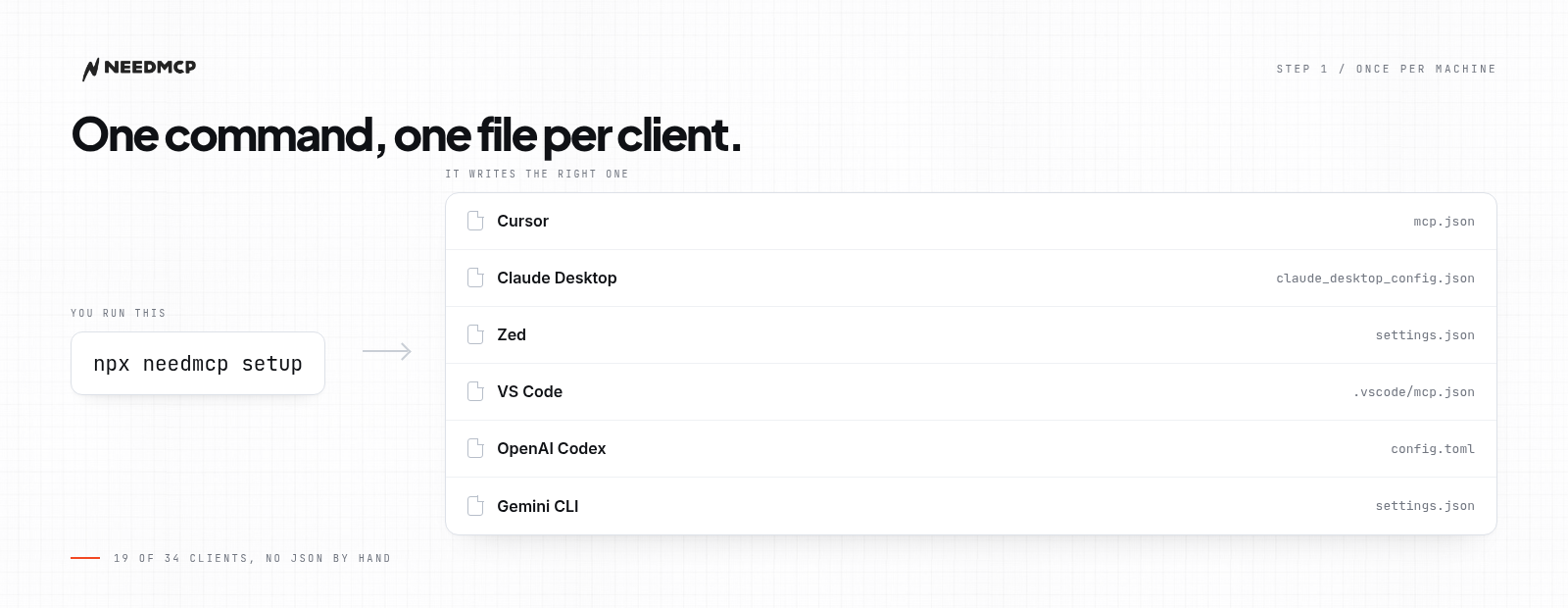
One command, and the config file for your client is already written.
If the server never appears after setup, fix that first. The five usual causes are in Add a design system to Cursor with MCP, and none of them are about wireframes.
Step 2: name the layout
Prefix, then the slug, then the page in plain words.
wireframe:login-auth-portal build a login screen for my app
What that line does, in order:
- Names a blueprint that already exists in the catalog.
- States the page, so the copy fits the job.
- Tells your assistant a layout is available, not just a style.
- Leaves the implementation to your stack: React, Vue, Blade, anything.
There is no theme to lock first. The layout comes from the catalog. The look comes from the components and tokens your repo already has.
Slugs come from the wireframe gallery, which holds 107 desktop layouts and 305 mobile ones.
| If you need | Slug to type | What the layout gives you |
|---|---|---|
| Sign in or sign up | wireframe:login-auth-portal |
Auth screen with a form column and three reassurance cards |
| Analytics home | wireframe:user-dashboard-overview |
Sidebar shell, stat row, and one chart region |
| Team or project board | wireframe:project-kanban-dashboard |
Kanban columns inside the same dashboard shell |
| Pricing page | wireframe:pricing-plans |
Three tier cards with a feature comparison below |
| Order operations | wireframe:dashboard-orders-oversight |
Table first layout with filters above the list |
| Landing page | wireframe:tipjar-landing-page |
Hero, proof strip, and a single call to action |
Step 3: check the page came from the blueprint
A page that looks fine is not proof. Four checks, one minute.
- Regions match. Same blocks, same order as the gallery preview.
- Ask it. "Which wireframe did you use, and which regions did you keep?"
- Read the log. A call to the wireframe tool, or no blueprint.
- Resize once. The structure holds. New regions mean it was improvised.
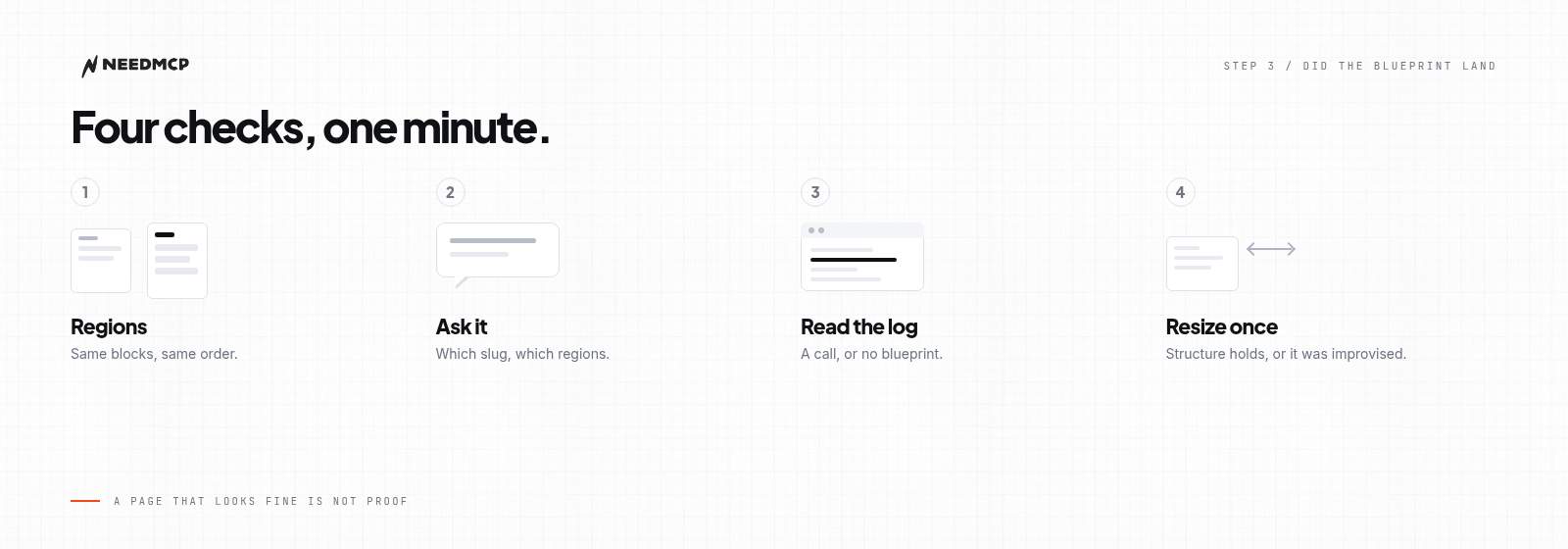
Four checks, in the order that finds the problem fastest.
Structure, or an exact copy
| Default trigger | Exact copy | |
|---|---|---|
| Prefix | wireframe: |
wireframe-accurate: |
| What you get | The structure, adapted to your stack | The example design, as it looks |
| Plan | Free | Pro |
On Free, the assistant says so and builds from the standard layout. Nothing breaks.
What the assistant needs from you
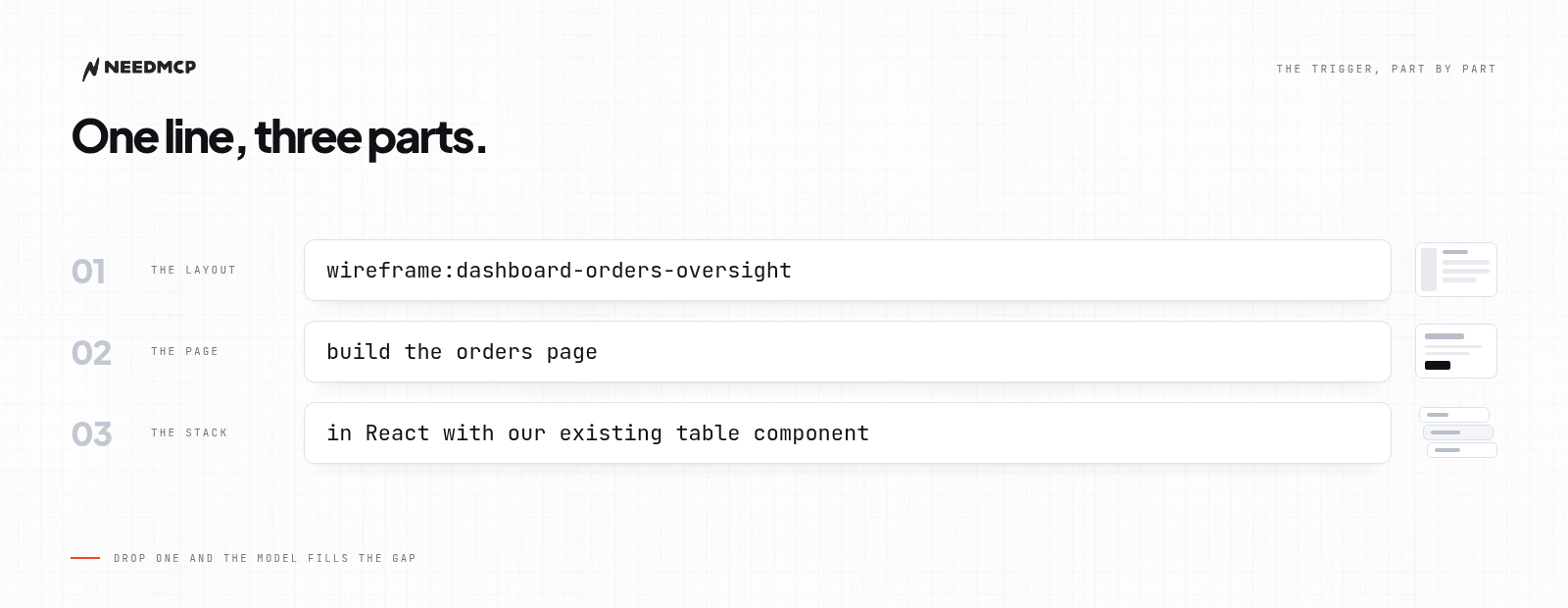
- Layout: the slug, copied from the gallery.
- Page: what it is for.
- Stack: what it has to fit.
Leave one out and the model fills the gap with an average.
When the trigger gets ignored
- Tools are off. Tool Management is per API key. With
get-wireframes-toolandget-wireframe-tooldisabled, the trigger has nothing to resolve. - The slug is close, not exact. A near miss resolves to nothing, and the model writes from memory.
- You asked for a section, not a page. A hero or a pricing block is a different unit.
- The client has not reloaded, or a call is waiting on you. Config is read at startup, and most clients ask before running a tool.
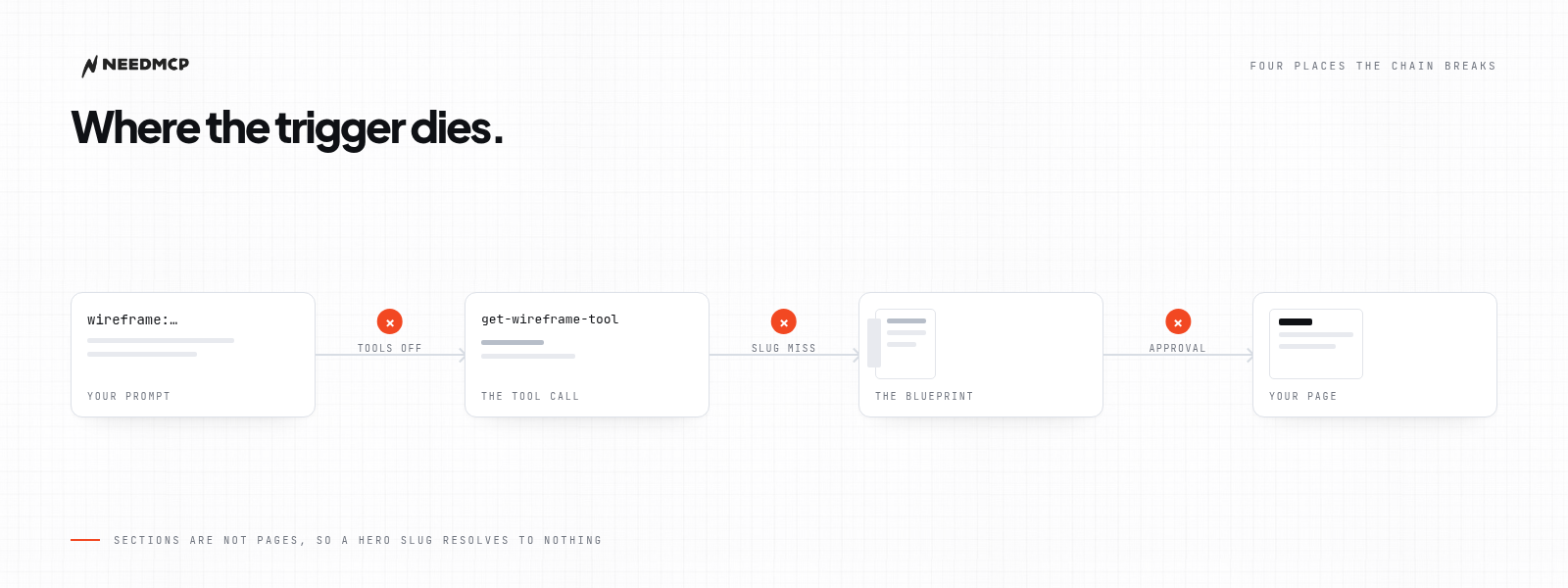
The chain has four links, and three of them break silently.
What a wireframe will not do
- It gives a layout that works, not the one that is right for your product.
- It does not transplant code. Your components win where they conflict.
- The lines asset is not a design. It fixes regions, order, and measures, then stops.
Do this next
Trigger one page, then put the result next to the lines asset from the same layout. If the regions match, you have a workflow.
Keep reading
More from Guides
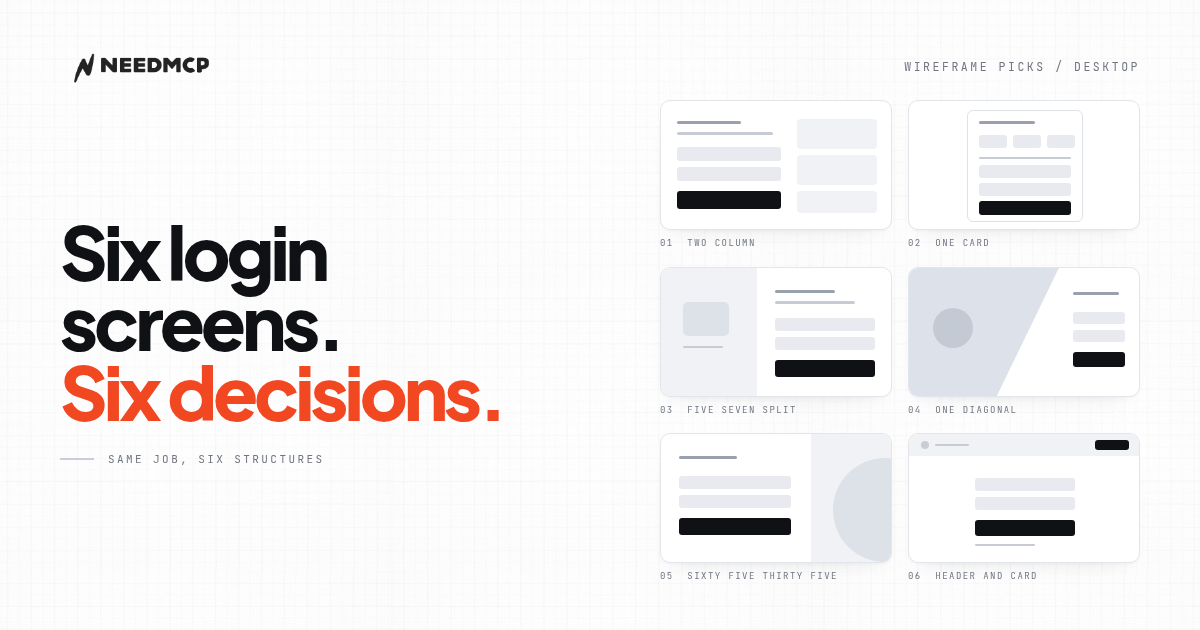
6 Desktop Login Wireframes That Don't Look AI-Generated
Six free desktop login wireframes from the NeedMCP catalog, with previews, the one design decision each gets right, and how to tell which one your product should start from.
AGENTS.md Builder: give your AI a rulebook before it writes code
Your AI forgets your decisions between sessions, so you re-explain them every time. AGENTS.md Builder interviews you for five minutes and writes the rulebook your assistants actually read.
Design context for AI coding: how to stop your assistant reinventing your UI every session
AI coding assistants drift between sessions because they lack shared design context. Here is why design drift happens, what six existing fixes leave unsolved, and how an MCP design context service fits in.
Ship UI that does not look AI-generated
Pull design tokens, wireframes, and modular sections straight into your project over MCP. No screenshot-to-guessing, no generic Tailwind defaults.