

6 Mobile Login Screens That Don't Look AI-Generated
On mobile the login decision is not the card. It is how many entry paths share one screen. Six free layouts, compared by what each one offers and what it leaves out.

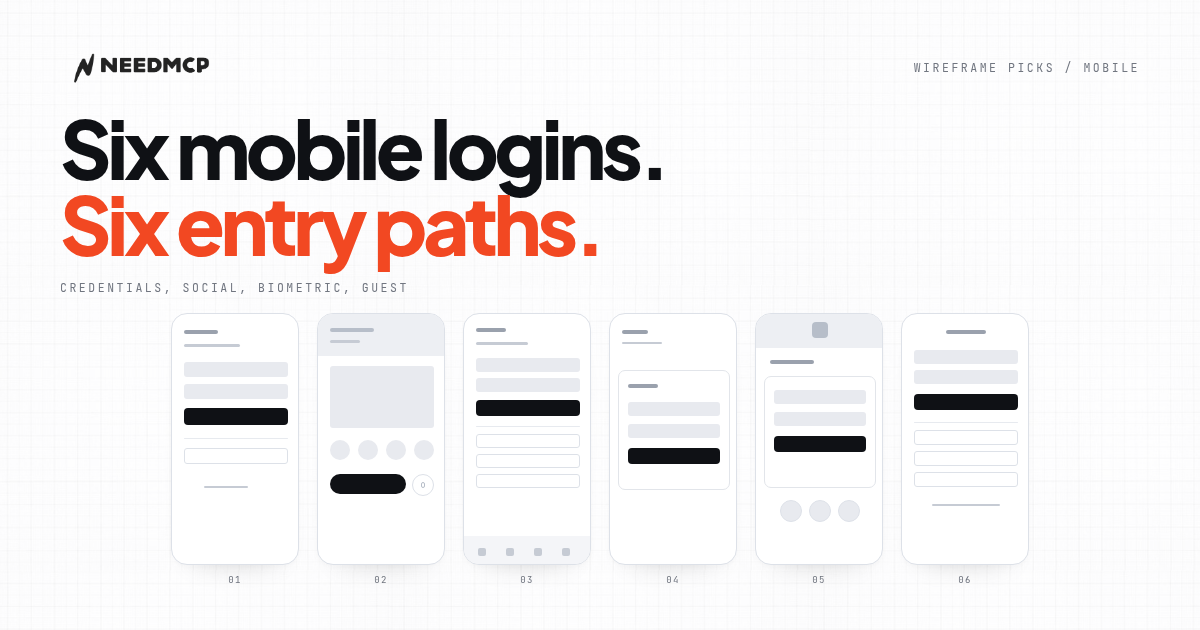
On mobile the problem is entry paths
A desktop login asks where the card sits. A phone login asks how many ways in you can stack before the screen turns into a menu.
Every path costs vertical space and adds one decision. Fields, a social row, a biometric shortcut, a guest link: four is usually the ceiling. Past four, the screen stops reading as a login and starts reading as a choice.
The six layouts below are free in the NeedMCP catalog, and each one spends that budget differently. Every section links to its wireframe page, where the full layout and the line drawing variant live.
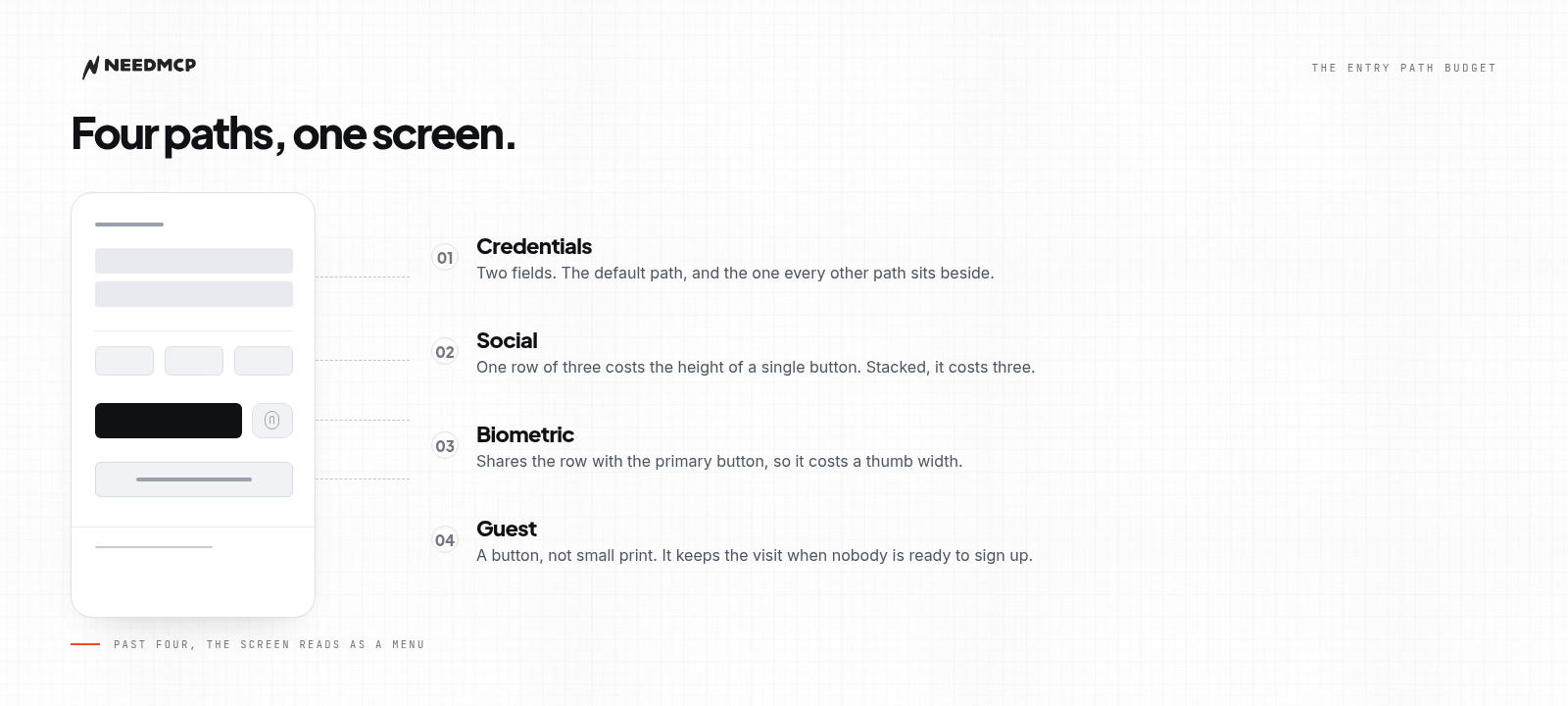
Four paths is the ceiling. Each one spends a different amount of screen.
1. Nexus Login Auth Form
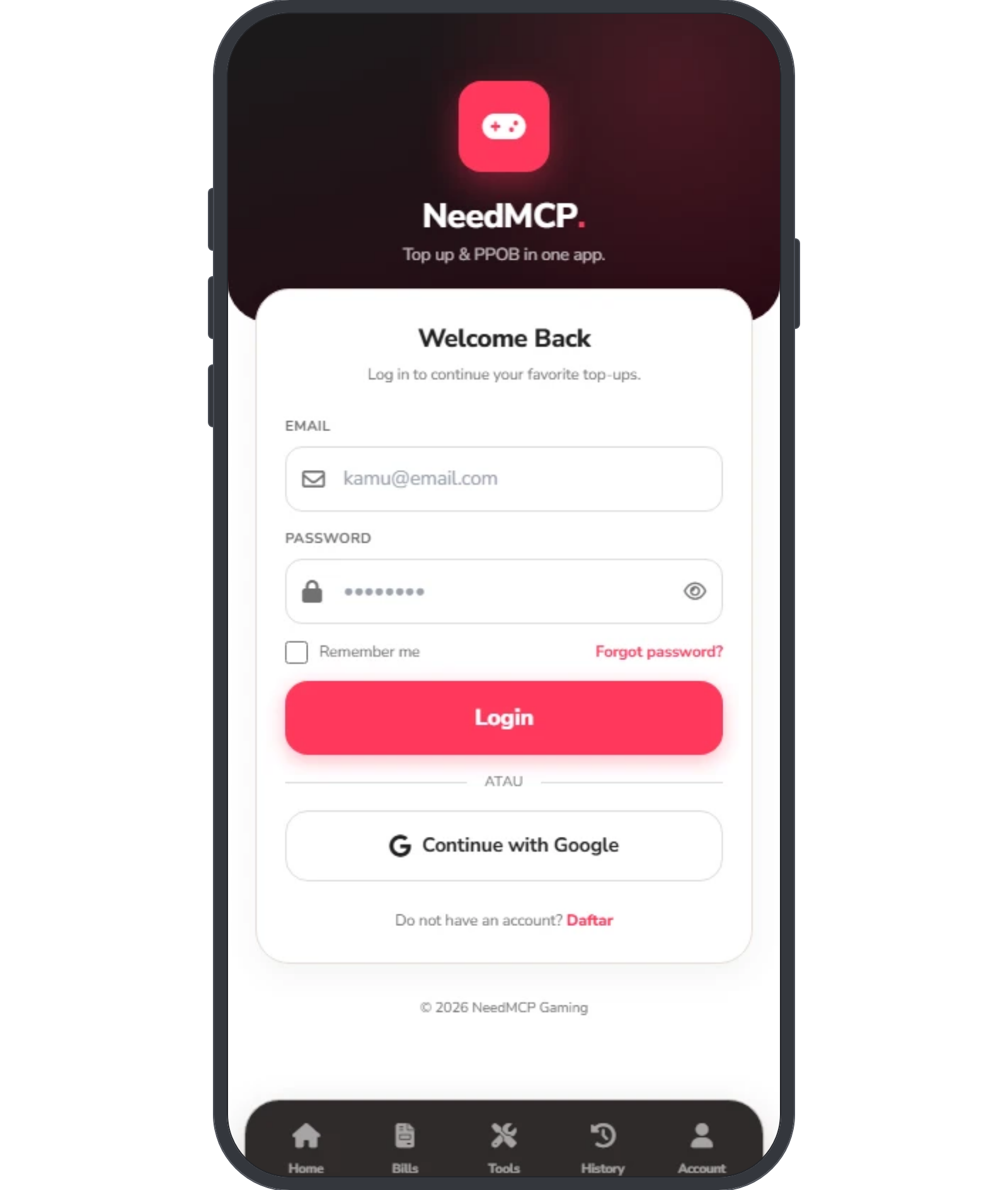
Nexus Login Auth Form: one social path, placed after the primary button.
The order runs down a single column: brand header with a tagline, a welcome line, an email field, a password field with a show and hide control, a remember row with a forgot link on the right, a full width primary button, a divider, one social button, then a register link and a footer line.
Entry paths: credentials, Google, register. Three in total, and only one of them is social.
Why it works: a single social button asks for a yes or a no, while a row of three asks the user to compare providers. That is a cheaper decision at the gate, and it keeps the primary button near the vertical centre where the thumb already is.
Use it when your audience is not split across providers, and you would rather not spend the height on a social row.
2. Split Login Finance
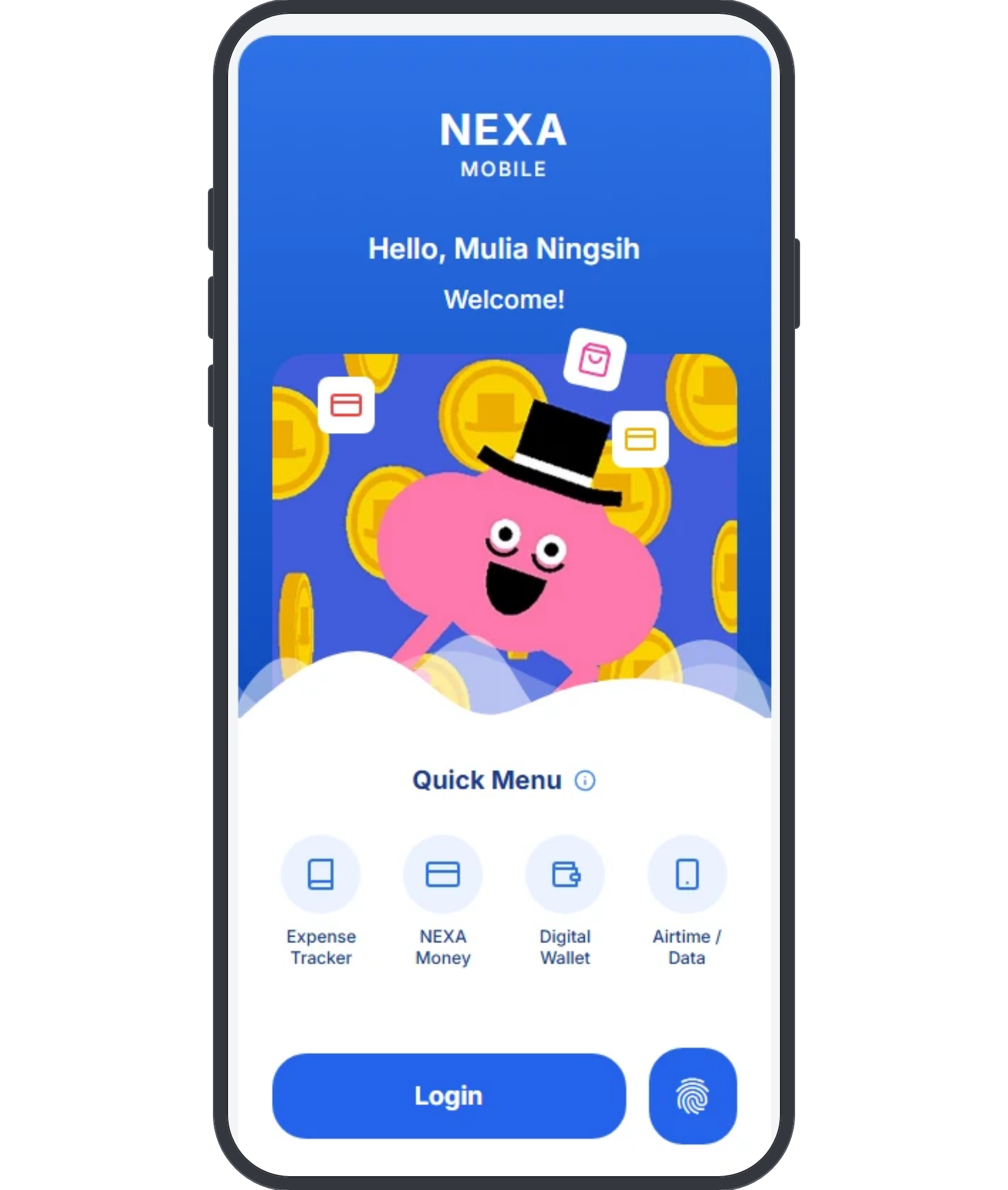
Split Login Finance: the biometric shortcut sits in the same row as the primary action.
A brand header, a greeting that names the person, an illustration panel, then a sheet that holds a Quick Menu of four shortcuts and a bottom row with a primary Login pill and a circular fingerprint button beside it.
Entry paths: credentials and biometric. Two, and they share one row.
Why it works: the second path costs a thumb width instead of a full block, so the screen stays short while still offering a faster way in. The Quick Menu above shows what the app does before sign in, which gives a reason to finish rather than bounce.
Use it when the app is used daily by returning people, and the shortcut can be trusted to work.
3. Auth Social Login
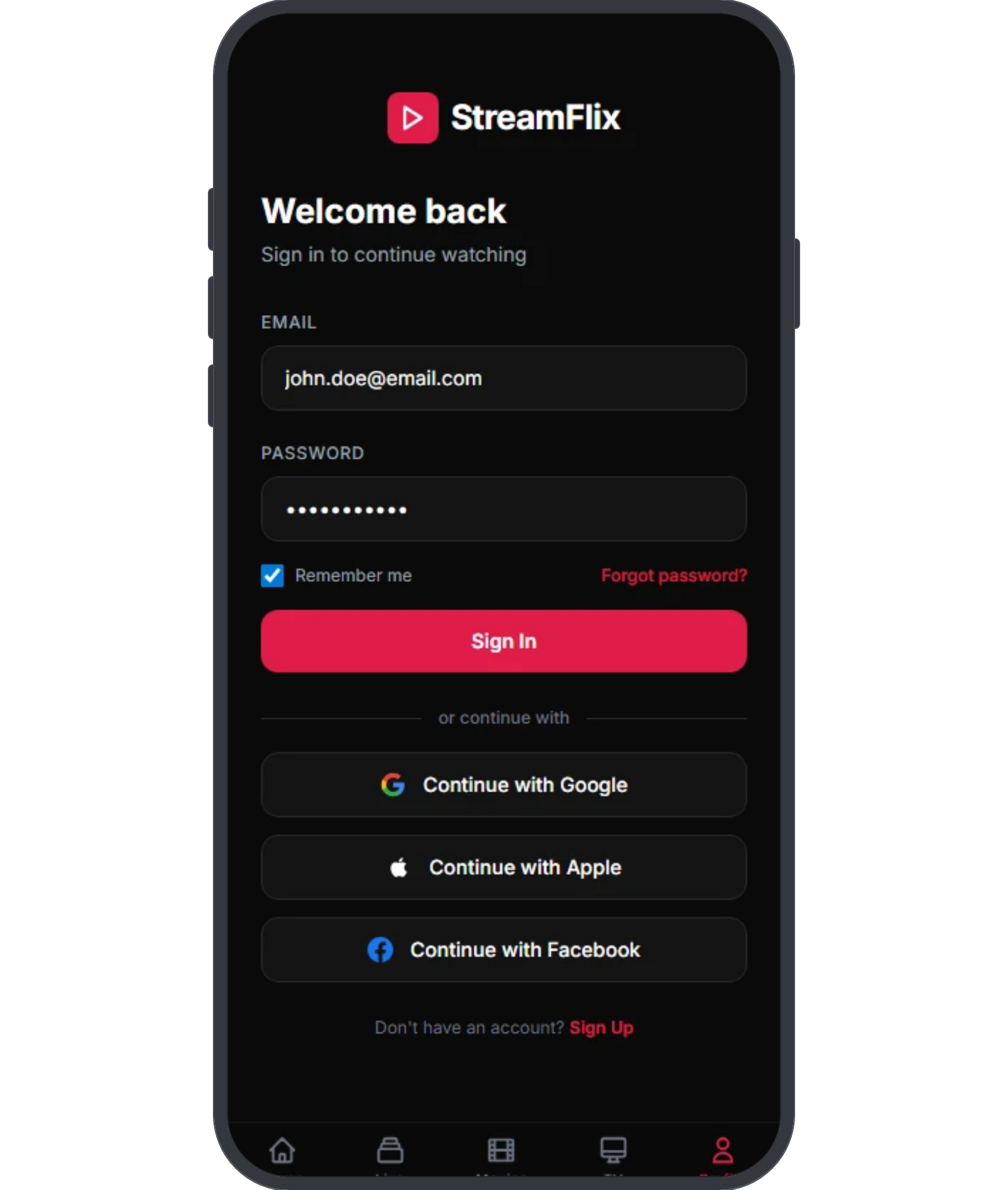
Auth Social Login: three full width social buttons stacked under the primary path.
Logo, welcome line, email and password, a remember row with a forgot link, the primary button, a divider, then three social buttons stacked full width, a register link, and a bottom navigation bar that stays visible.
Entry paths: credentials, Google, Apple, Facebook, register. Five, the largest count in this set.
Why it works: stacking gives each provider the full width, so every button is a large target. It also reads as a list of alternatives rather than a comparison row, which is the right frame when the providers are not equal to the user. The cost is height, roughly one button per provider, which is why the screen scrolls.
Use it when the audience is split across providers and losing one of them would cost sign ups.
4. POS Login Auth
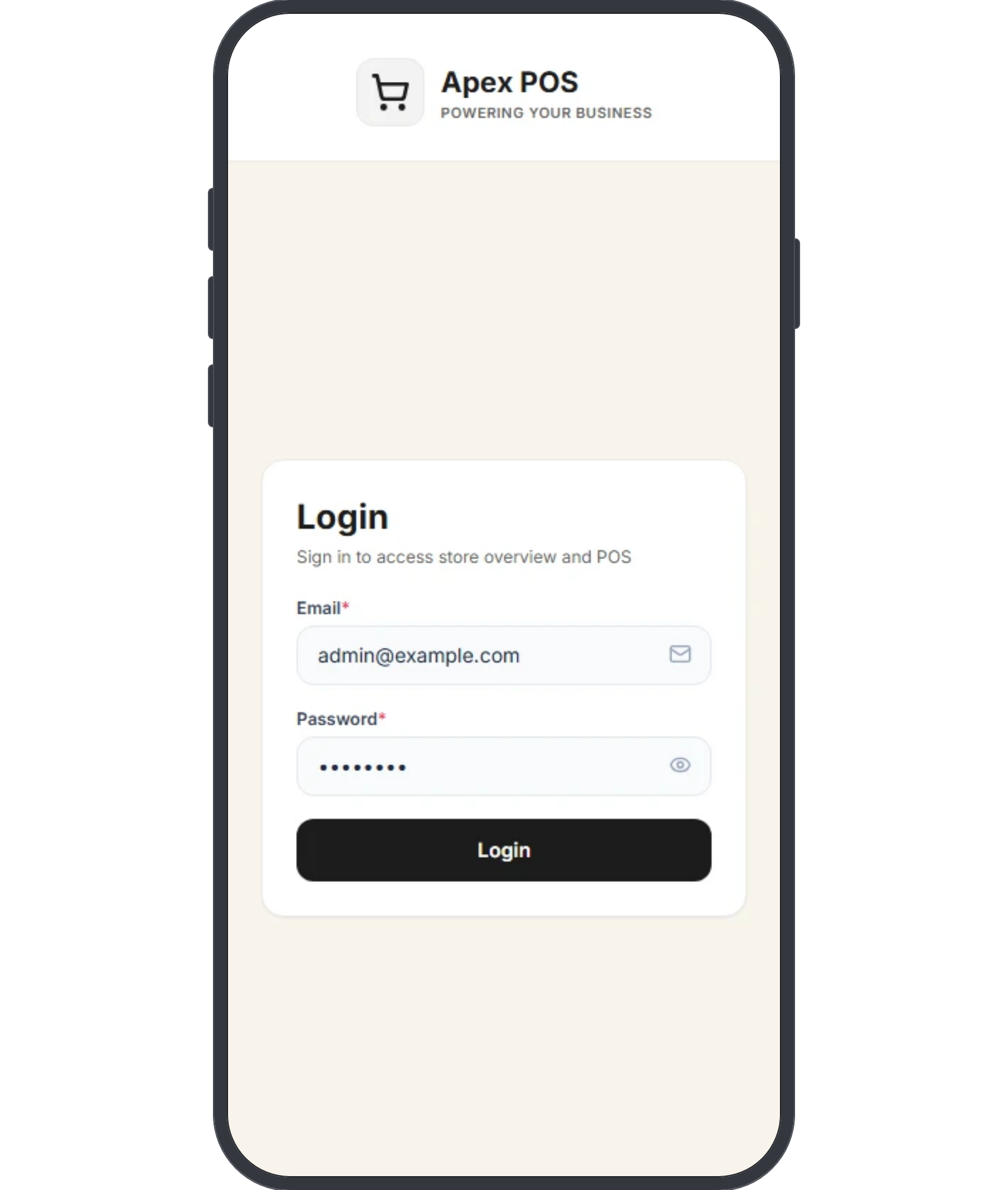
POS Login Auth: one card, two fields, one button, and nothing else.
A brand header with a tagline, then a single centred card holding a login heading, a supporting line, a required email field, a required password field with a show and hide control, and one full width button.
Entry paths: credentials only. One.
Why it works: a shared terminal cannot carry a personal social account, so a second path would be dead weight on every shift. Two fields and one button is the shortest flow that still identifies the person holding the device.
Use it when the device is shared by staff, and speed of handover matters more than choice.
5. Whip Login Form
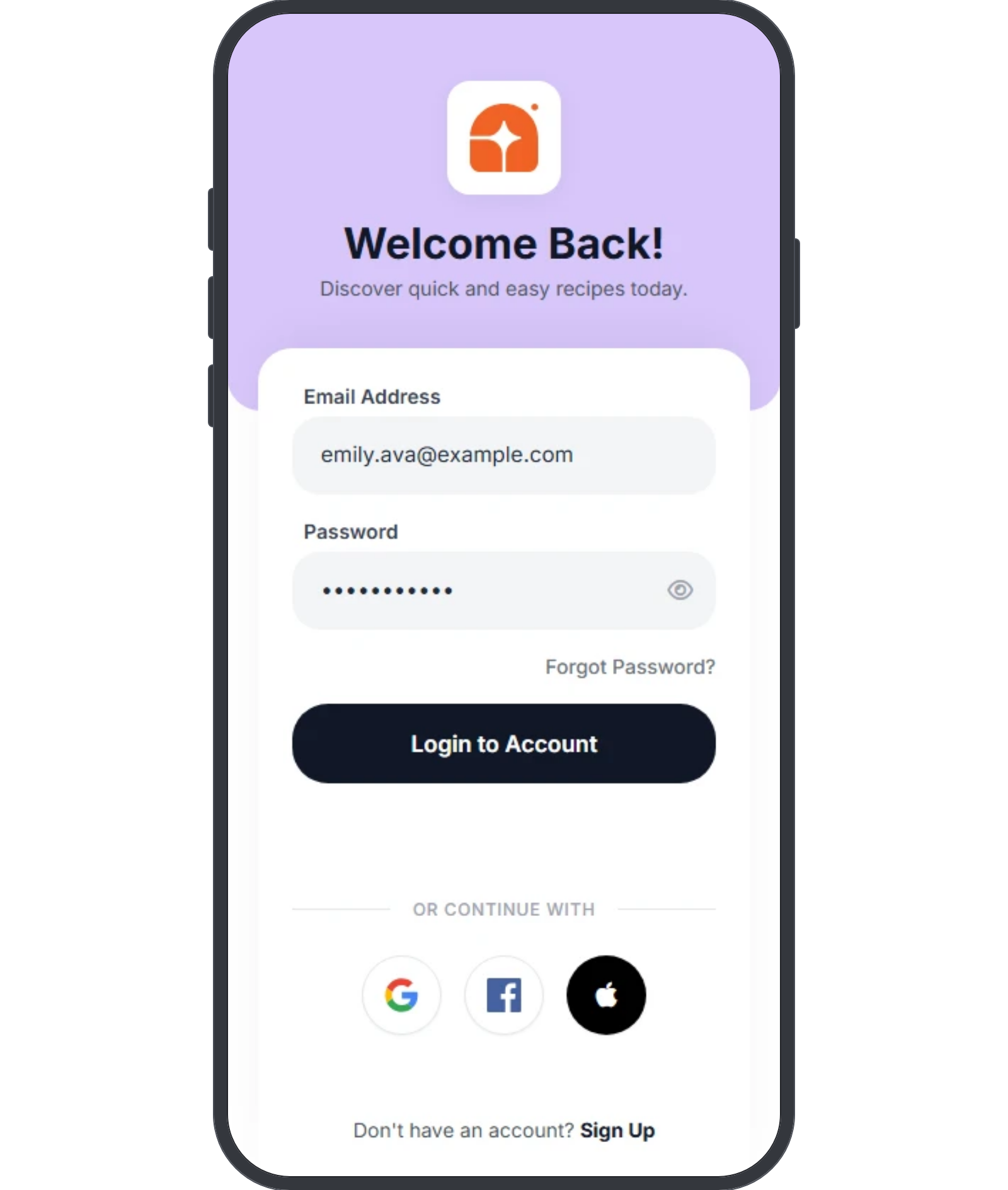
Whip Login Form: three providers compressed into the height of one button.
An app icon in a header band, a welcome heading, then a card with an email field, a password field with a show and hide control, a forgot link aligned right, a full width primary button, a divider, three circular social buttons in one row, and a register line.
Entry paths: credentials, Google, Facebook, Apple, register. Five.
Why it works: the circles fit three providers into the height of a single button, so the page stays short and the primary action stays above the fold. The trade is a smaller target per provider, which only works when the icons are recognised on sight.
Use it when vertical space is the constraint and the providers are the obvious three.
6. Coaching Login
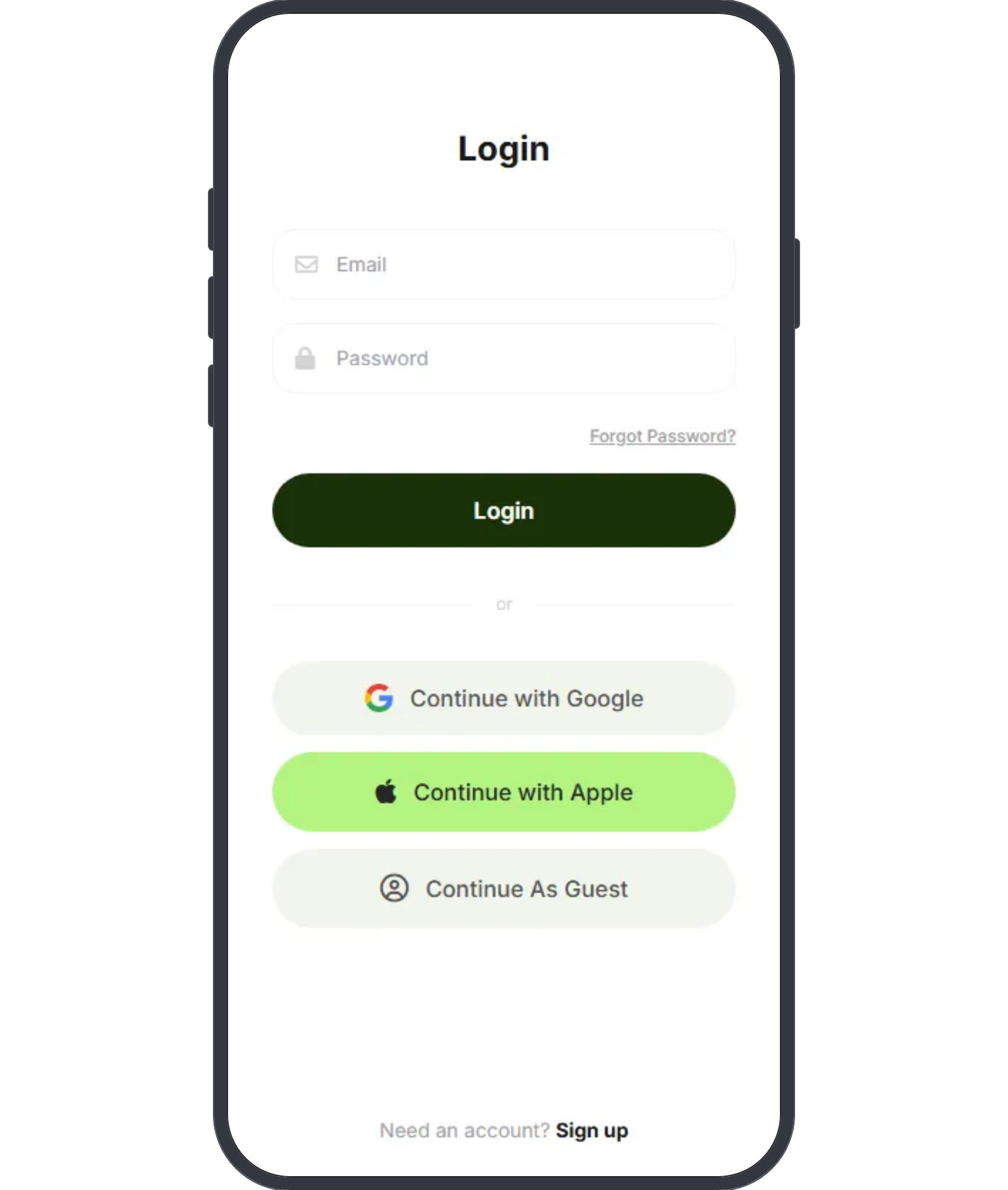
Coaching Login: guest gets a button in the same stack, not a line of small print.
A login title, email and password fields, a forgot link, a full width primary button, a divider, then three stacked full width buttons: Google, Apple, and Continue As Guest. A sign up line closes the screen.
Entry paths: credentials, Google, Apple, guest, register. Five, and one of them needs no account at all.
Why it works: guest sits last in the same stack, so it reads as a third alternative rather than an escape hatch. Someone who is not ready to commit still gets in, and the app keeps the session instead of losing the visit.
Use it when the product can show value before an account exists, and you want the visit to continue.
The comparison that decides it
| Screen | Cred. | Soc. | Bio. | Guest | Paths |
|---|---|---|---|---|---|
| Nexus | Yes | 1 | No | No | 3 |
| Split | Yes | 0 | Yes | No | 2 |
| Auth | Yes | 3 | No | No | 4 |
| POS | Yes | 0 | No | No | 1 |
| Whip | Yes | 3 | No | No | 4 |
| Coaching | Yes | 2 | No | Yes | 4 |
Screens run in the order above. Cred. is email and password, Bio. is a biometric shortcut, Soc. counts the provider buttons, and a zero means the layout offers none.
Read it by column, not by row. A social column of three means three full width targets stacked, which costs height. A biometric column with a yes means the shortcut sits next to the primary action, which costs almost nothing. A guest column with a yes means the screen keeps people who are not ready to sign up.
If you cannot name the path you are adding and the decision it removes, you are spending height for nothing.
How to pull one into your project
Name the layout by slug and describe the screen in the same prompt: wireframe:auth-social-login build the sign in screen for our app. A style prefix is optional, and the layout adapts to your stack either way.
The setup, the trigger, and the four checks that the page really came from the blueprint are in How to use NeedMCP wireframes in your AI Agent.
All six are free. Each one also ships a line drawing variant if you only want the skeleton, and a desktop counterpart exists for the same job, compared by card layout instead of entry path: 6 Desktop Login Wireframes That Don't Look AI-Generated.
Keep reading
More from Guides
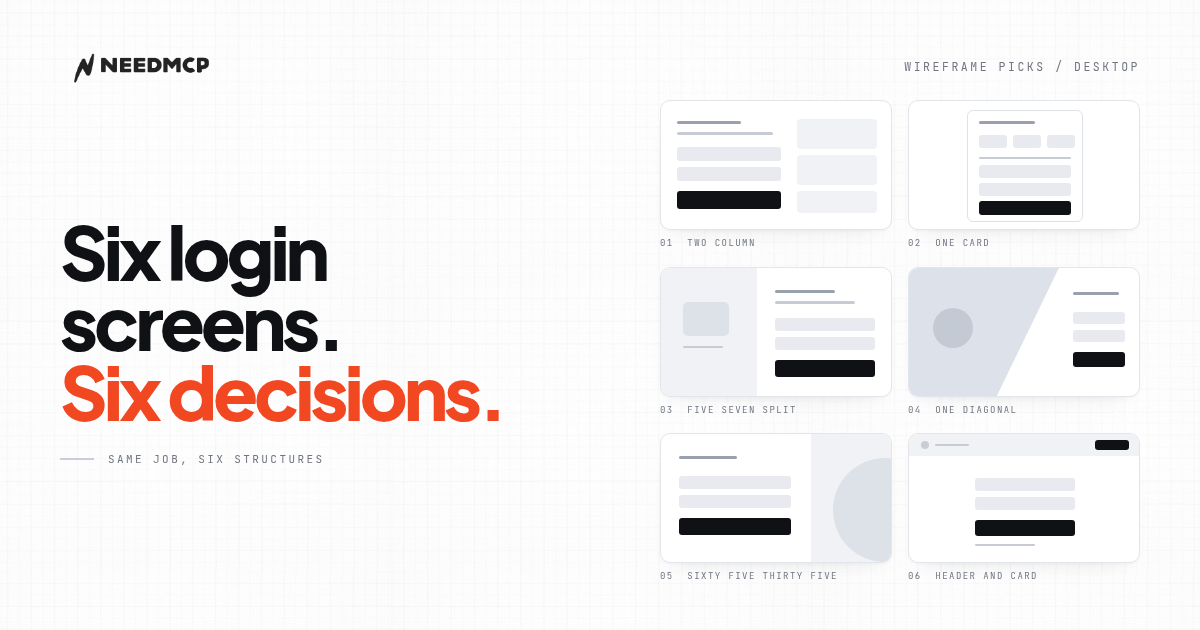
6 Desktop Login Wireframes That Don't Look AI-Generated
Six free desktop login wireframes from the NeedMCP catalog, with previews, the one design decision each gets right, and how to tell which one your product should start from.
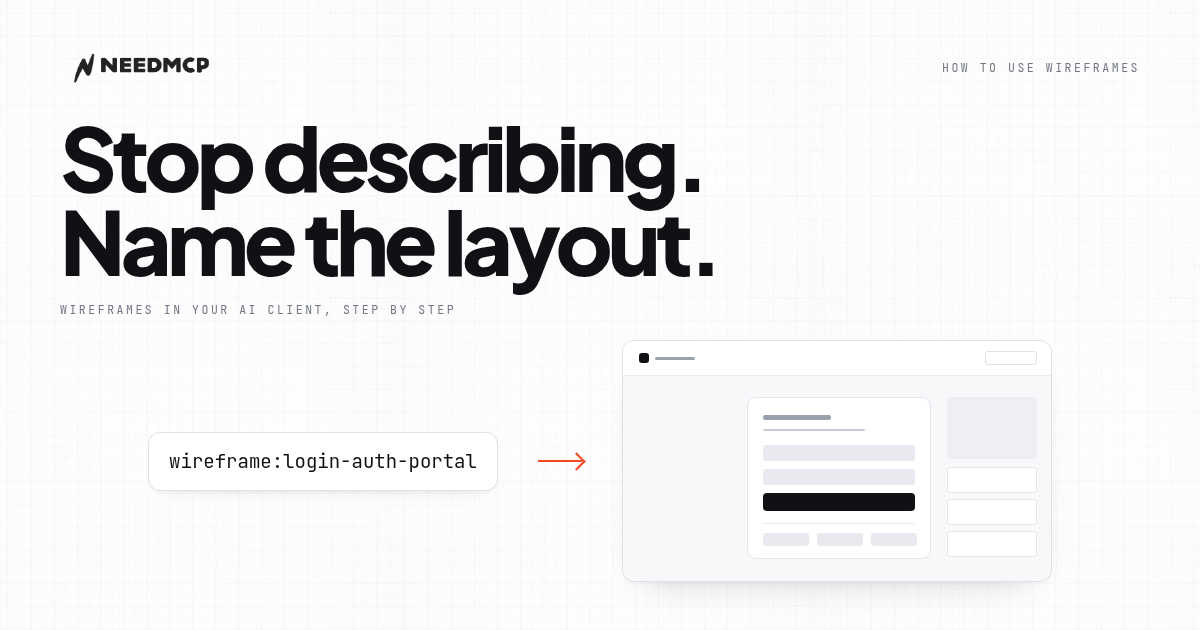
How to use NeedMCP wireframes in your AI Agent
Wireframes are the part most people connect and never trigger. Here is the whole path: the one-time setup, the slug that names a layout, and how to tell the page came from the blueprint.
AGENTS.md Builder: give your AI a rulebook before it writes code
Your AI forgets your decisions between sessions, so you re-explain them every time. AGENTS.md Builder interviews you for five minutes and writes the rulebook your assistants actually read.
Ship UI that does not look AI-generated
Pull design tokens, wireframes, and modular sections straight into your project over MCP. No screenshot-to-guessing, no generic Tailwind defaults.